
Configure the label account#
Open Encored → Shipping → Shipping account and choose your label provider: the carrier account connected in Shopify, a direct Australia Post contract account, or ShipStation. Complete the selected provider’s connection steps, choose a supported service where required, and save realistic fallback parcel measurements.
Provider availability depends on the connected account and service. Check that your setup supports the seller countries enabled in Settings.
Connect Australia Post in Shopify#
These steps apply when you choose the Shopify label provider in Encored.
- In Shopify admin, open Settings → Shipping and delivery → Carrier accounts. Select Connect account, then Australia Post.
- In the Register Carrier popup, follow the link to log in to your Australia Post MyPost Business account.
- Make sure a payment method has been added to the MyPost Business account.
- Under eCommerce Partners, find Shopify and select Connect. This generates a merchant token.
- Select Copy Token, then return to the Shopify popup.
- Paste the token into Merchant Token, select your Payment Method, then select Connect.

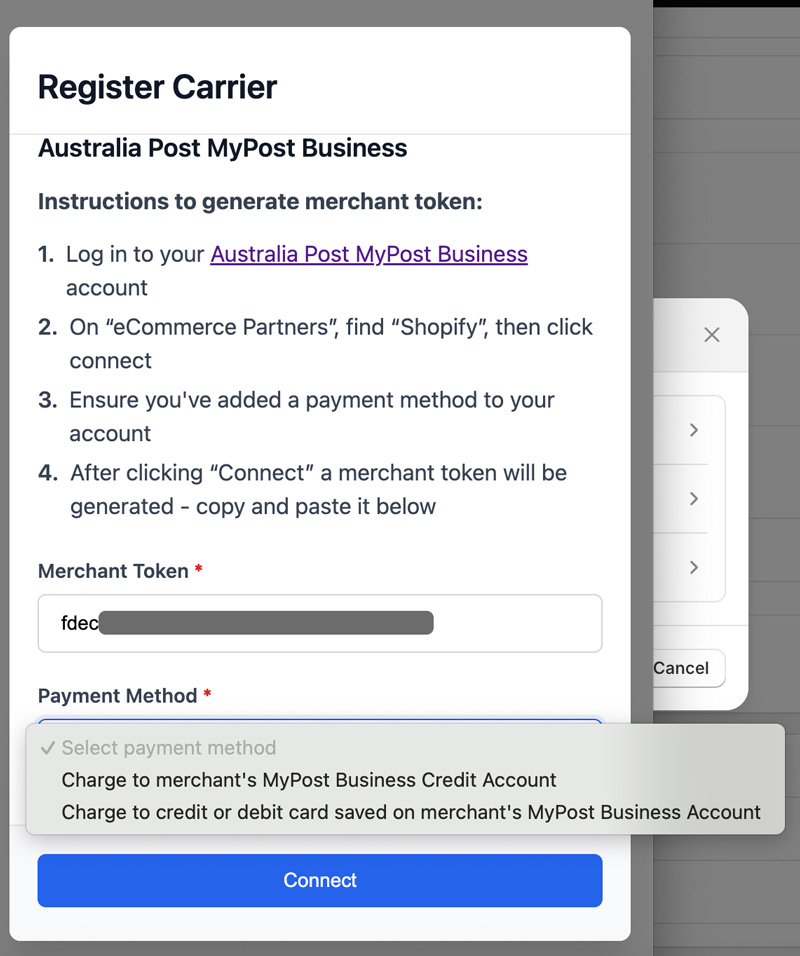
Use your own store’s Shipping and delivery settings. For example, the demo store uses this Shopify Shipping settings page.
Accept Shopify Shipping terms before using Encored labels#
Before Encored can automatically create labels for sellers through Shopify, the retailer must accept Shopify Shipping’s terms of service by purchasing one shipping label manually in Shopify admin. Connecting Australia Post or opening the purchase screen alone does not accept the terms.
Your team can use an order created for testing. It needs a physical item, a shipping address and an unfulfilled shipment.
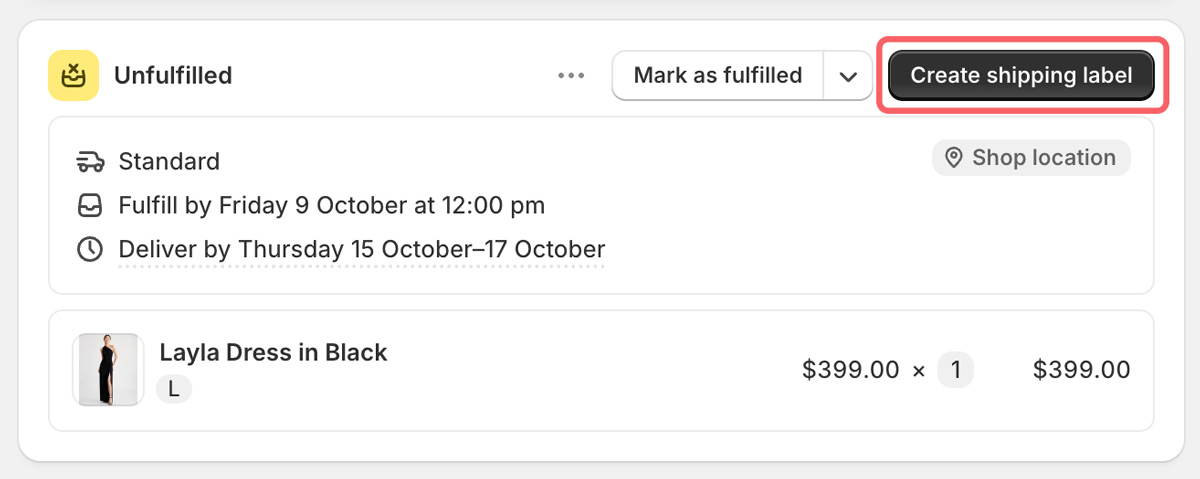
- Open the order in Shopify admin.
- In its Unfulfilled section, select Create shipping label. This opens the label purchase screen using your connected Australia Post account.
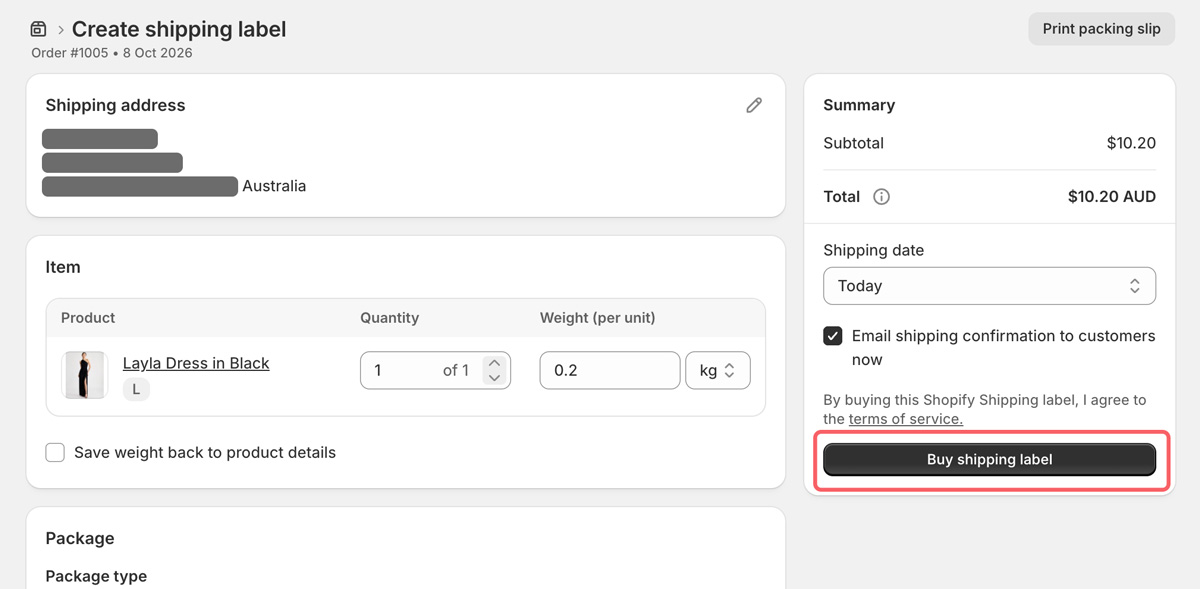
- Check the address, parcel weight and dimensions, shipping service, date and postage cost.
- Review the terms of service shown above Buy shipping label.
- Select Buy shipping label to complete the purchase and accept the terms.
- Return to Encored → Shipping and save the Shopify label provider. Confirm the seller can download a label during a Pre-Loved test sale.
Who pays for shipping labels?#
The retailer pays the full label cost through the connected account’s selected payment method. Encored does not pay postage on the retailer’s behalf, and the seller does not pay for the label.
We recommend charging buyers a separate Pre-Loved shipping fee, in addition to your usual shipping charges, to cover the full label cost. Configure it in Shopify for the Encored Pre-Loved fulfilment location. Follow Checkout shipping rates and test both a Pre-Loved-only cart and a mixed cart containing new and Pre-Loved items.
Weight and parcel measurements#
Labels use the weight of the original Shopify product variant when available. Your saved fallback dimensions describe the packaging; fallback weight is used when the original variant has no usable weight. Keep original catalogue weights and your packaging measurements accurate.
The seller downloads the label#
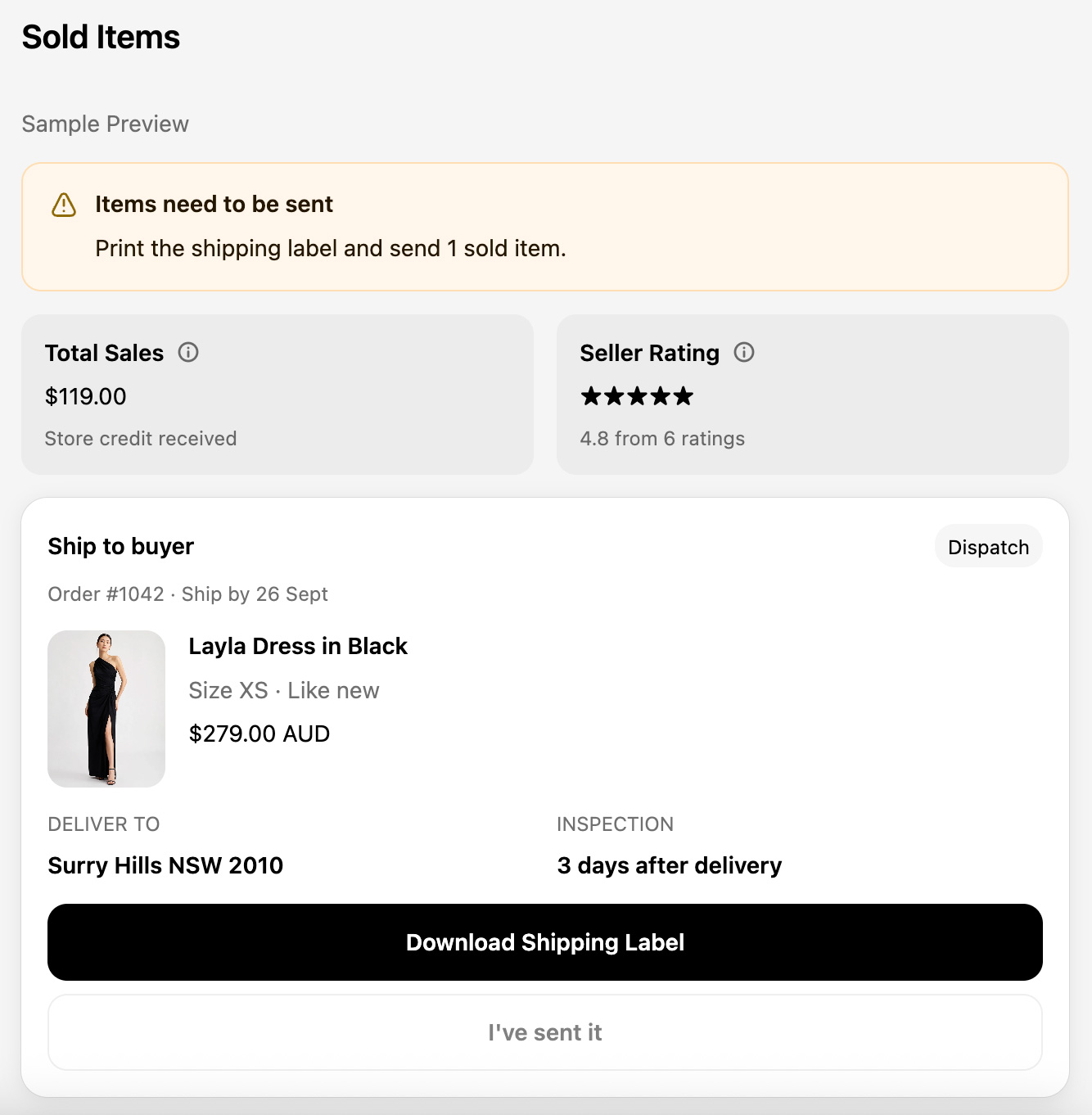
After an item sells, the seller opens Sold Items and selects Download shipping label. Encored creates and purchases the label at that point; payment for the order alone does not create it. Downloading an existing label does not purchase another one.
The seller’s confirmed address is used as the origin on the Shopify Shipping purchase path. Encored does not move your store’s assigned fulfilment location to that address.
Mark the item sent#
The seller prints the label, packs and dispatches the item, then chooses I’ve sent it. This action is available once the label exists. It records shipment and writes tracking to Shopify.
Downloading a label alone is not dispatch. The buyer inspection period starts when Shopify reports delivery or pickup, not when the label is purchased.
Staff label controls#
In Shipping, authorised staff can also create or retry a label for a sale awaiting shipment, and download an existing label. Check the label status and tracking before trying again.
Check label problems#
If a label cannot be purchased, check the selected provider, account connection, payment method, service, parcel and seller address. For Shopify Shipping, confirm your team has completed the first manual label purchase and accepted the terms. Review Shipping and Health. Avoid buying a separate duplicate label before checking the sale’s existing label status.
Shipping error codes#
Sellers can report a shipping error code to your team. Search this guide for the code to find its meaning and the retailer action required.
Shipping Error Code 01#
Seller message: Shipping Error Code 01 - Please contact retailer and report this error code
Meaning: The store has not accepted Shopify Shipping's terms of service. Shopify rejects the label purchase until the retailer completes this setup. This code does not mean that the seller's shipping cutoff has passed.
What the retailer needs to do:
- Follow Accept Shopify Shipping terms before using Encored labels. Complete the first manual shipping label purchase in Shopify admin and accept the terms there. Connecting a carrier account or only opening the label screen is not enough.
- Check that the affected sale is still awaiting shipment and has not been cancelled or refunded.
- Ask the seller to open Sold Items and try Download Shipping Label again. If another error appears, review the sale's label status in Encored → Shipping before making another purchase.
If Code 01 persists after the first purchase and acceptance, contact Encored support with the code, order number and a screenshot of the error. Do not send account passwords or API credentials.
Further help#
Shopify’s Australia Post setup guide explains merchant tokens and payment methods. Its label purchase API requirements confirm that Shopify Shipping terms must be accepted before an app can buy labels.